Exclude Rooms with Select Room Features from Auto Room Assignment
Stay is enhanced to allow users to exclude rooms with selected room features from auto room assignment. For example, users can configure rooms tagged as Smoking Rooms to be excluded from auto room assignment.
Users can exclude the features from being auto assigned by enabling the Exclude from Auto Room Assignment flag for the required feature on the Add/Edit Feature screen (All Settings ➜ Rooms & Room Types ➜ Rooms Presets ➜ Features ➜ Add/Edit Feature). This flag is disabled by default. When enabled, an icon is displayed next to the feature in the Room Types and Property Configuration tabs on the Rooms Setup screen. When users hover over the icon, the following message is displayed: Excluded from Room Auto-Assignment.
When a feature tagged to be excluded from auto assignment is configured to a room number, the room number is excluded from being auto assigned to reservations from the following screens:
-
Batch Operations
-
Tape Chart
-
Reservation
-
Book a Reservation
When creating a reservation, the rooms with the Exclude from Auto Room Assignment flag enabled will not be auto assigned even if the Auto Room Assignment option is enabled for the room type. However, users can manually assign these rooms to reservations.
Assigning Rooms from Batch Operations - Check-In tab
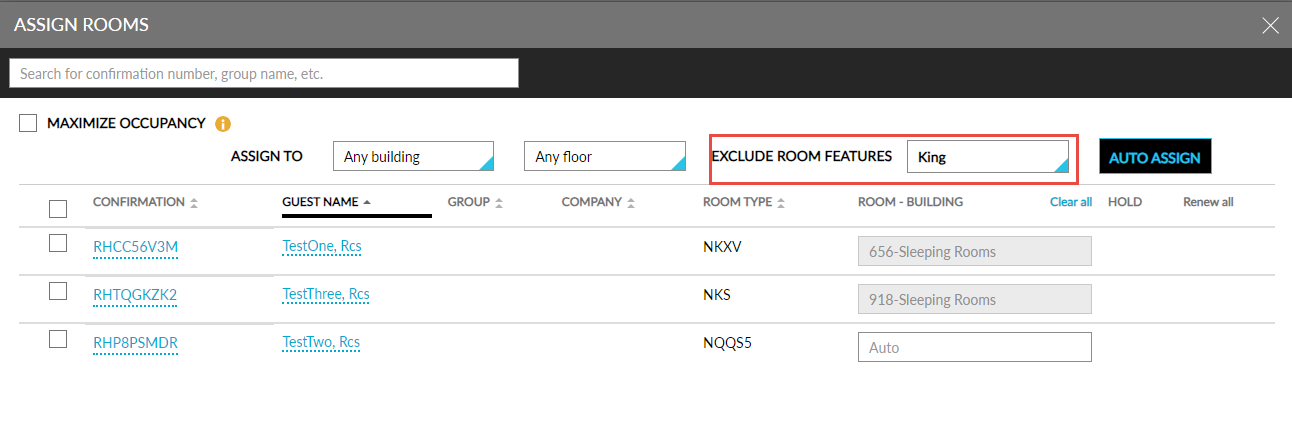
When users select multiple reservations and click the Assign Rooms option on the Check-In tab of the Batch Operations screen, the rooms with the Exclude from Auto Room Assignment flag enabled will not be auto assigned. When users enable the Maximize Occupancy option in the Assign Rooms screen, the message, Exclude Auto-Assignment has been ignored, is displayed and the rooms with excluded features are assigned to reservations.
The excluded features for the rooms are displayed in the Exclude Room Features drop-down list on the Assign Rooms screen. All the features in the drop-down list are pre-selected by default when users want to maximize the occupancy. Users can uncheck the features if required. Based on the features selected, the rooms are assigned to reservations.
Assigning Rooms from Tape Chart Screen
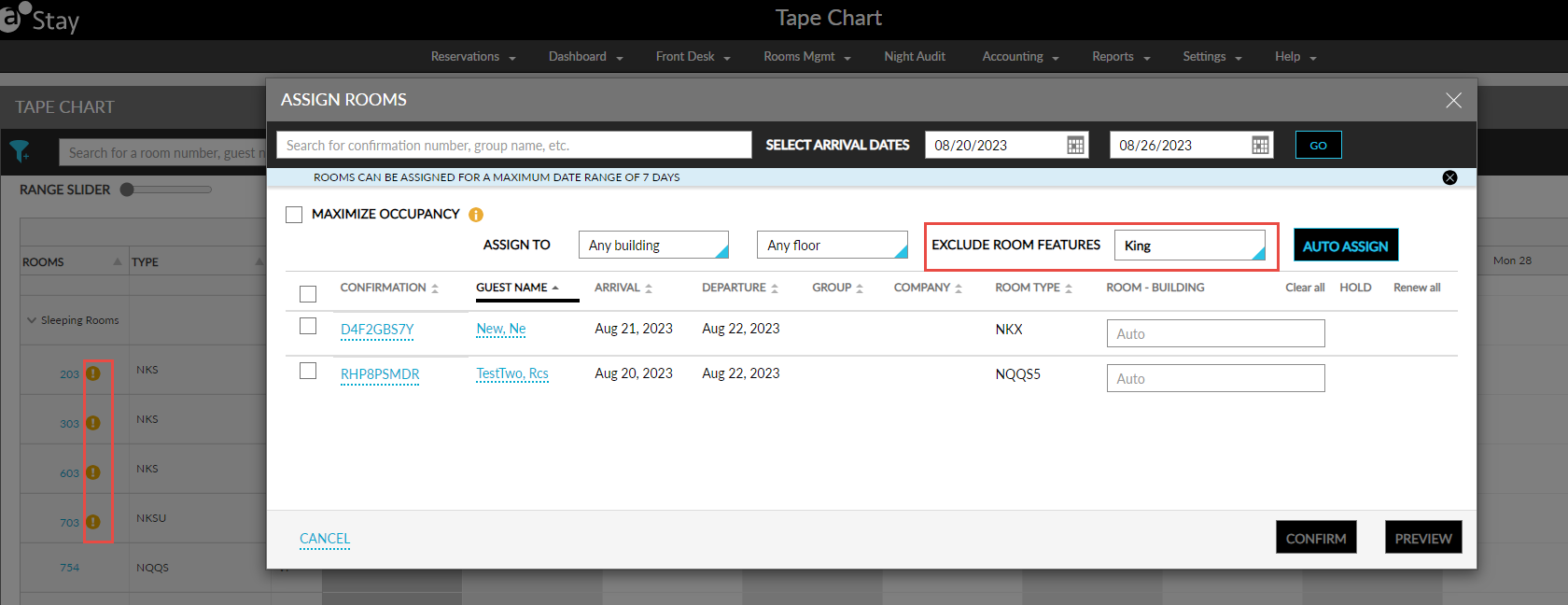
An icon is displayed for the rooms with features tagged to be excluded from being auto assigned on the Tape Chart screen. When users hover over the icon, the following message is displayed: Excluded from Room Auto-Assignment.
When users assign rooms to multiple reservations using the Assign Rooms option, the rooms with the Exclude from Auto Room Assignment flag enabled will not be auto assigned. When users enable the Maximize Occupancy option in the Assign Rooms screen, the message, Exclude Auto-Assignment has been ignored, is displayed and the rooms with excluded features are assigned to reservations.
The excluded features for the rooms are displayed in the Exclude Room Features drop-down list on the Assign Rooms screen. All the features in the drop-down list are pre-selected by default when users want to maximize the occupancy. Users can uncheck the features if required. Based on the features selected, the rooms are assigned to reservations.
Users can manually create a reservation for the rooms with excluded features from this screen.
Assigning Rooms from the Reservation Screen
An icon is displayed for the rooms with features tagged to be excluded from being auto assigned on the Other Matching Rooms section of a reservation. When users hover over the icon, the following message is displayed: Excluded from Room Auto-Assignment.
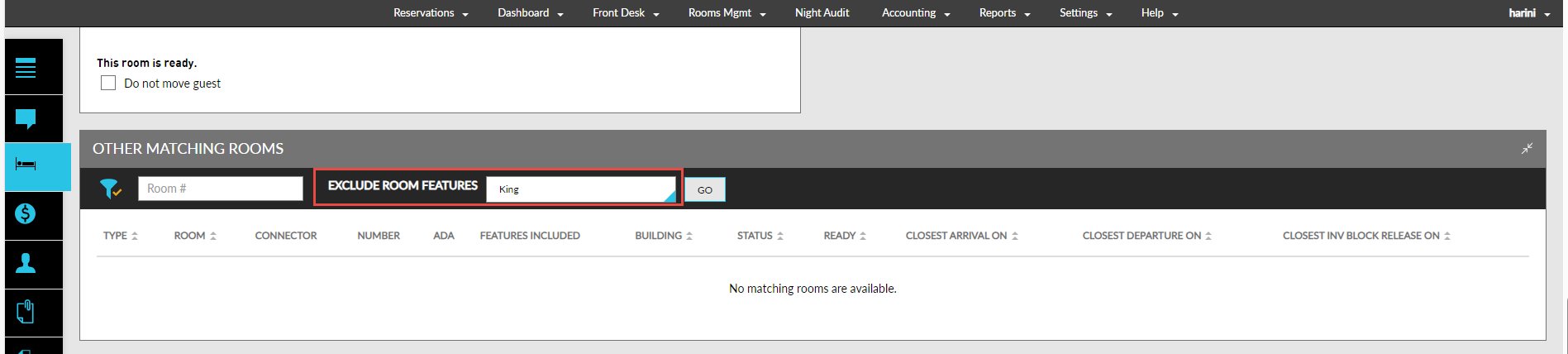
When users expand the Other Matching Rooms section of the reservation, the excluded features for the rooms are displayed in the Exclude Room Features drop-down. Based on the features selected, the rooms are retrieved and displayed.
Assigning Rooms from the Book a Reservation Screen
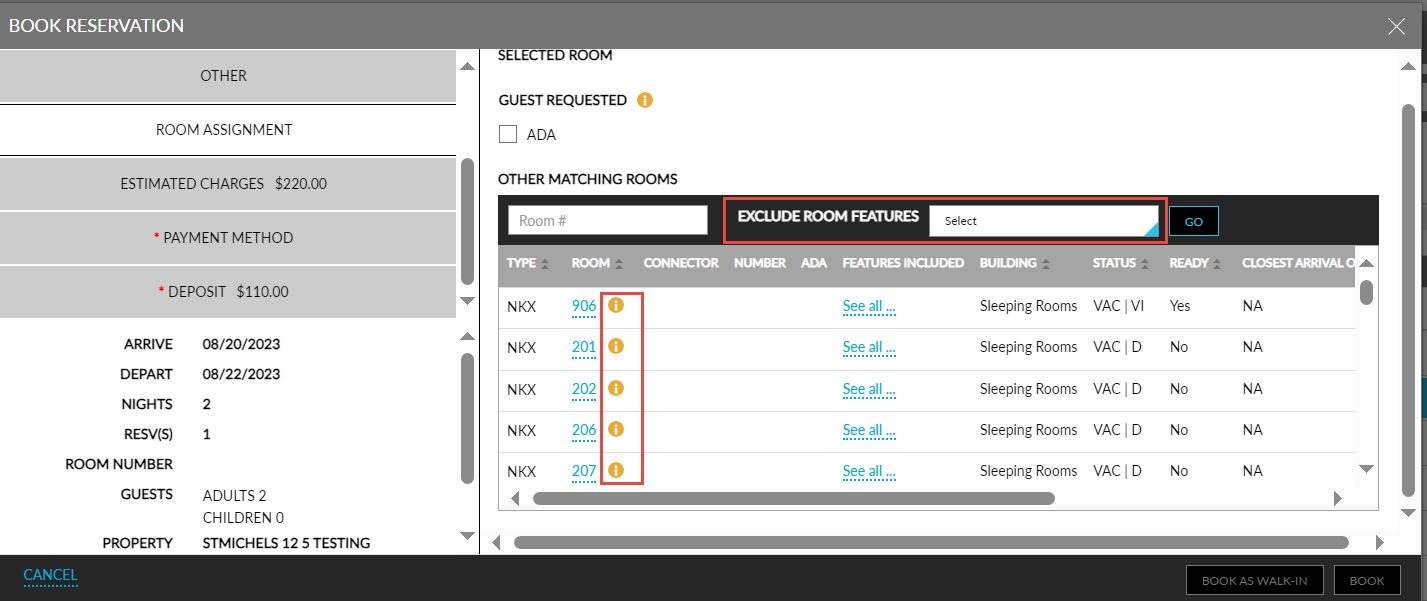
An icon is displayed for the rooms with features tagged to be excluded from being auto assigned on the Other Matching Rooms section of the Book a Reservation screen. When users hover over the icon, the following message is displayed: Excluded from Room Auto-Assignment.
The excluded features for the rooms are displayed in the Exclude Room Features drop-down list on the Other Matching Rooms section. Based on the features selected, the rooms are retrieved and displayed.
Assigning Rooms for Group Reservations
Users can select the room features to be excluded for the rooms assigned to group reservations from the Exclude Room Features drop-down list on the Reservation Presets tab on the Group screen.
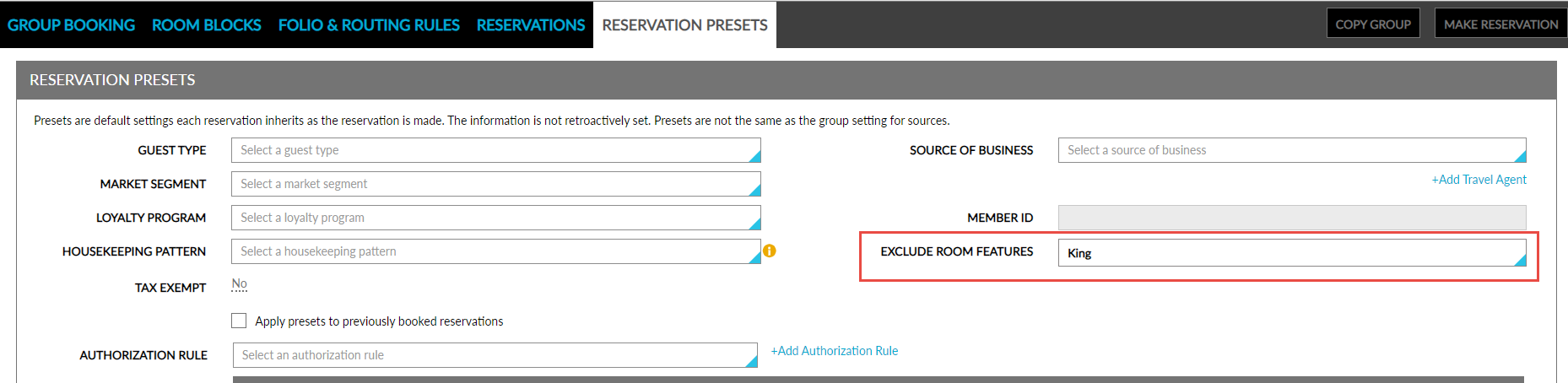
If users choose to Apply Presets for the previously created reservations, the Exclude Room Features selected will be applied to all the existing reservations created for the group. When users navigate to these existing reservations and expand the Other Matching Rooms section, the excluded features will be pre-selected by default and displayed in the Exclude Room Features drop-down.
If users chose not to Apply Presets for existing reservations, the excluded features selected will only be applied to the new reservations created for the group. When users create new reservations, the excluded features will be pre-selected and displayed in the Exclude Room Features drop-down list in the Other Matching Rooms section of the Book a Reservation screen.
When rooms are not assigned to reservations based on the room features selected to be excluded from auto assignment, the message, Room could not be assigned due to the exclusion preference on the reservation, is displayed at the top of the Reservation screen.
To support this enhancement, the following changes have been made:
-
A new flag, Exclude from Auto Room Assignment, has been added to the Add/Edit Feature screen (All Settings ➜Rooms & Room Types ➜Rooms Presets ➜Features ➜Add/Edit Feature).
-
A new drop-down list, Exclude Room Features, has been added to the following screens:
-
Batch Operations ➜ Check-In ➜ Assign Rooms
-
Tape Chart ➜ Assign Rooms
-
Reservation ➜ Other Matching Rooms
-
Book a Reservation ➜ Other Matching Rooms
-